No signal through a VGA, DVI, or HDMI adapter
Adapters and converters between HDMI, DisplayPort, DVI and VGA are a common cause of no signal: many work in one direction only, some need extra power, and passive ones cannot carry every resolution. Prove a native digital link first.
Steps
-
Prefer native digital
Skip the adapter during triage.
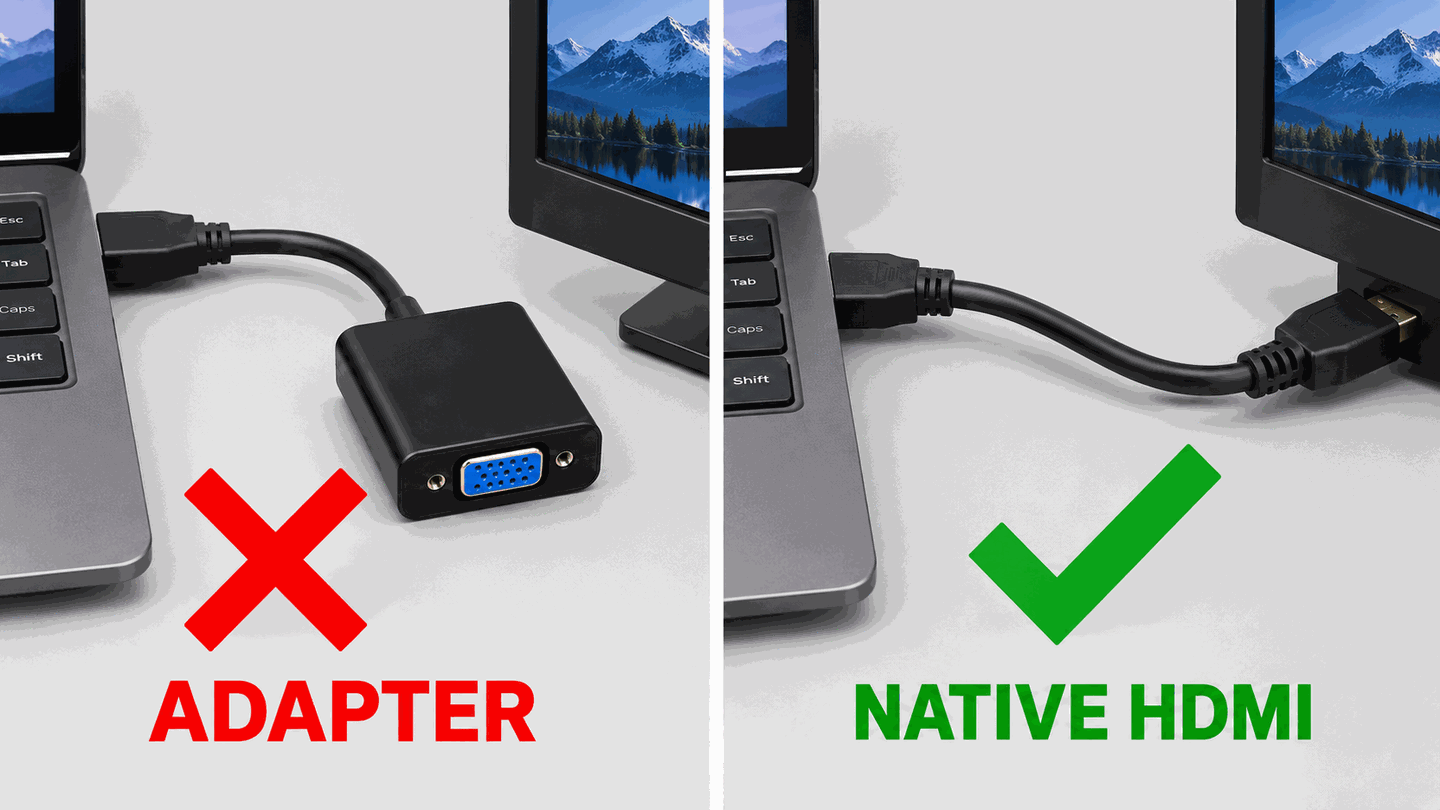
Native HDMI/DP is the reliable troubleshooting path. -
Mind signal direction and power
HDMI-to-VGA adapters are active converters that work one way only: HDMI from the PC to a VGA monitor. Most run on power from the HDMI port, but some laptops and small PCs do not supply enough, so connect the adapter’s USB power cable if it has one. Going the other way, from a VGA-only PC to an HDMI monitor, needs a powered VGA-to-HDMI converter; a plain cable cannot do it.
-
DVI: single-link limits and analog adapters
HDMI and DVI-D carry the same digital signal, so a passive HDMI-to-DVI adapter or cable usually works, but only as single-link DVI: up to 1920×1200 at 60 Hz. Modes such as 1080p at 144 Hz or 2560×1440 at 60 Hz need a dual-link DVI port on the graphics card or an active adapter labeled dual-link. A passive DVI-to-VGA adapter works only on a DVI-I port that carries analog video; recent graphics cards have DVI-D or no DVI at all. When unsure, use a monitor port that matches the GPU natively.
-
If you must use VGA
After a picture appears, set 60 Hz and a modest resolution — see out of range.

What to do next
FAQ
Why did my HDMI-to-VGA adapter stop working?
HDMI-to-VGA converters run on the small amount of power the HDMI port supplies. Some laptops and small PCs do not supply enough, and cheap converters also fail. Connect the converter’s USB power cable if it has one, and test native HDMI before buying another adapter.
What does “No DVI Cable” or “No VGA Cable” mean?
Dell monitors show it when the monitor is set to its DVI or VGA input and no cable is detected there. If your PC is connected by HDMI or DisplayPort, switch the monitor’s input to that port. If you do use DVI or VGA, reseat both ends and tighten the connector screws.
Official sources
- Troubleshoot external monitor connections in Windows — Microsoft suggests removing adapters/dongles while isolating faults.
Independent DIY troubleshooting. Prefer Microsoft and OEM support articles for model-specific steps. We do not sell one-click fix tools or host driver packs.