USB-C dock or hub shows no signal on the monitor
USB-C docks and hubs add firmware, power, and Alt Mode requirements. Microsoft recommends removing docks and dongles early when external monitors fail.
Steps
-
Prove a direct connection
Direct cable success isolates the dock/hub.
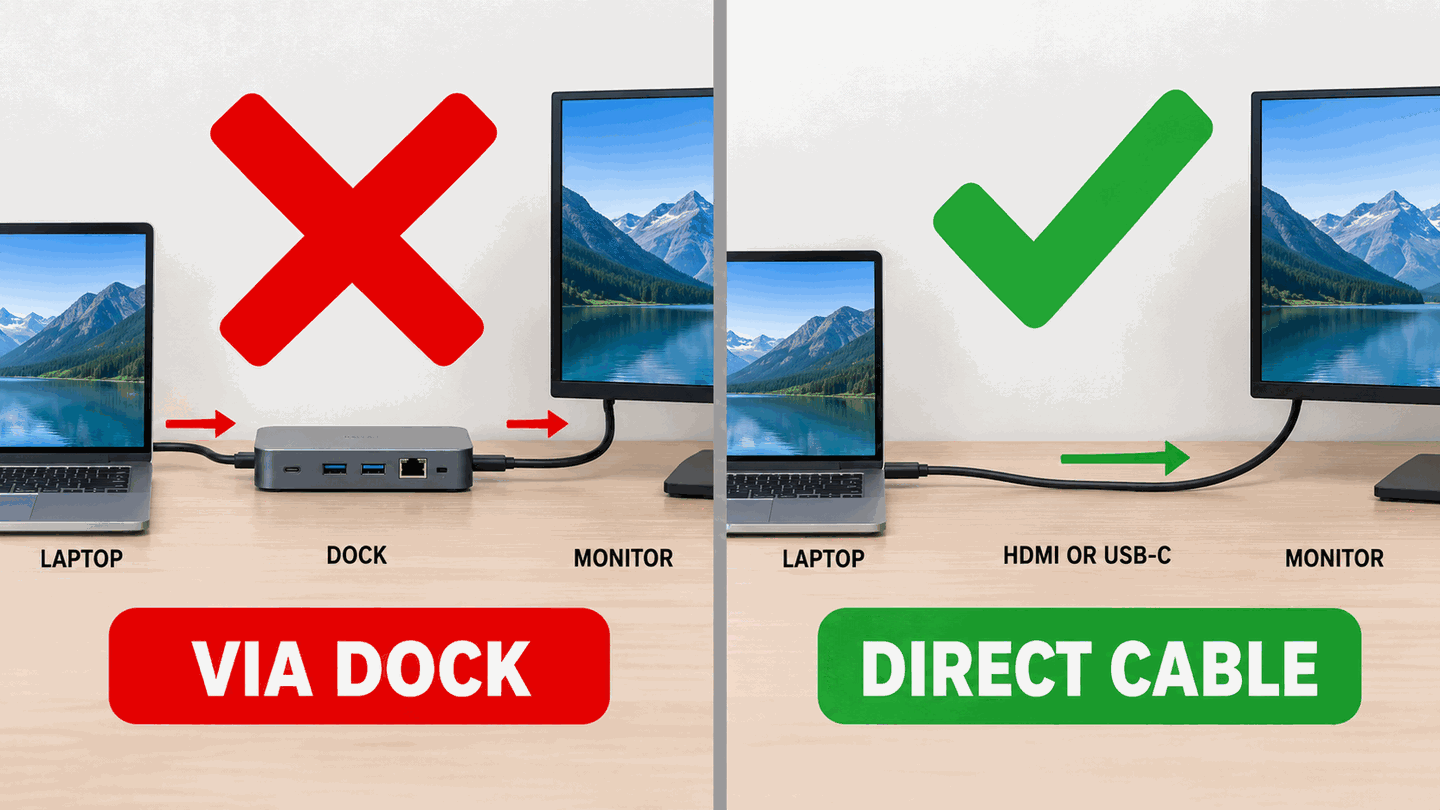
Bypass the dock to prove the PC and monitor still work. -
Use a port that supports DisplayPort Alt Mode
Charging-only USB-C ports will not drive a display. Try every USB-C/Thunderbolt port.
-
Power the dock correctly
Attach the dock’s power brick if it has one. Underpowered hubs drop video first.
-
Update dock firmware from the dock maker
Use only the manufacturer’s support site. Then retest Win+P and Detect displays.
-
Wireless docks
For Miracast/wireless display issues, follow Microsoft’s wireless display/dock article — wired triage first is still recommended.

What to do next
FAQ
Hub worked for data but not video
Data-only hubs lack DP Alt Mode. You need a video-capable dock/hub.
Official sources
- Troubleshoot external monitor connections in Windows — disconnect docks/dongles early.
- Fix connections to wireless displays or docks in Windows
Independent DIY troubleshooting. Prefer Microsoft and OEM support articles for model-specific steps. We do not sell one-click fix tools or host driver packs.