Check the HDMI cable and port
If the monitor shows HDMI no signal, rule out the cable and physical port before opening the case or reinstalling drivers.
Steps
-
Power-cycle both ends
Turn the monitor off. Shut down the PC (hold the power button ~10 seconds if the screen is unusable). Unplug the HDMI cable from PC and monitor for 30 seconds, then reconnect firmly until seated.
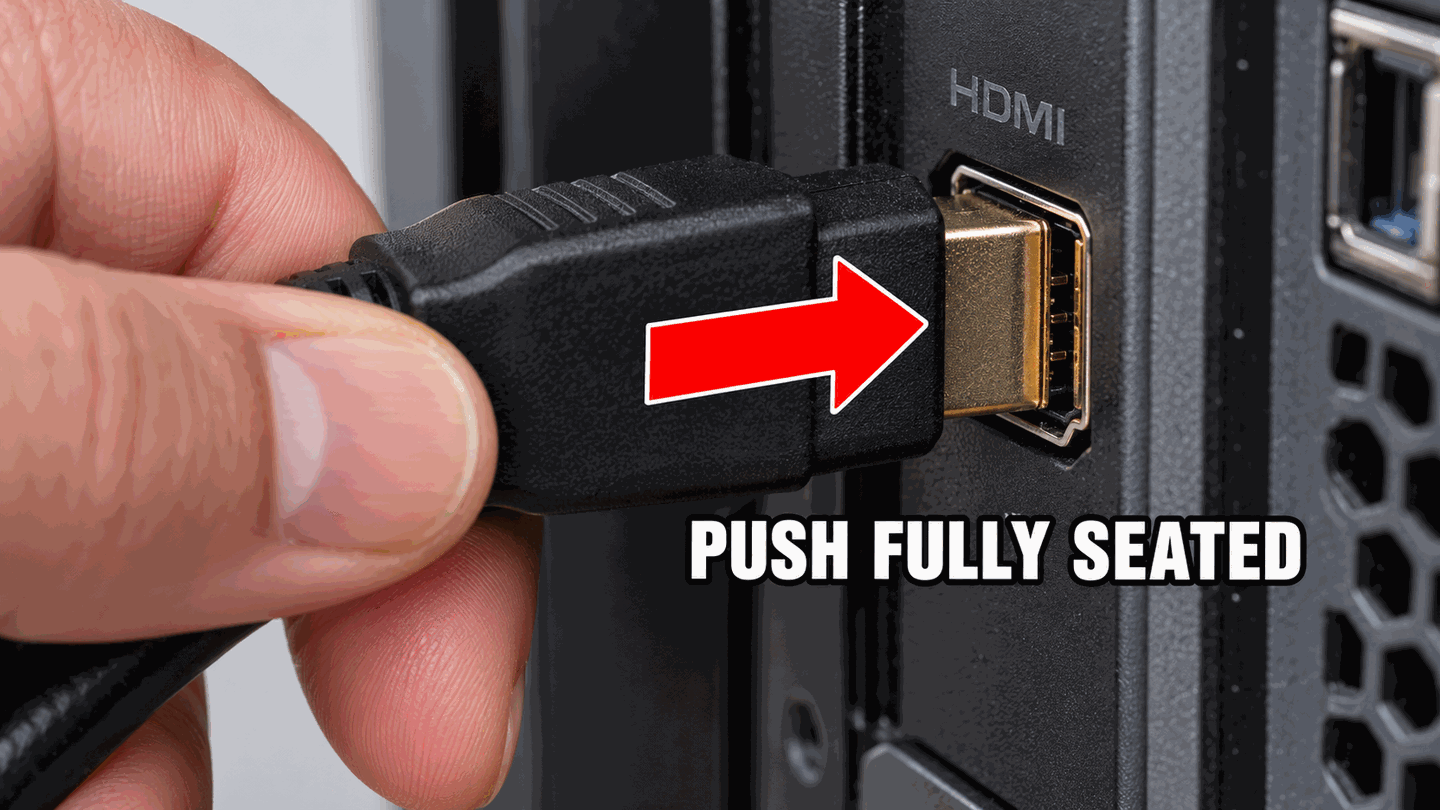
Reseat both ends; a half-inserted HDMI plug often reports no signal. -
Swap the cable
Replace the cable with one that already works on another device. Thin, damaged, or excessively long cables fail more often at high refresh rates.
-
Try another port on the PC and on the monitor
Many monitors have HDMI-1 and HDMI-2. On the PC, try a second HDMI output on the GPU. Avoid daisy-chaining through a soundbar or AVR until a direct PC→monitor cable works.
On discrete-GPU desktops, confirm you are not on the motherboard HDMI — see GPU vs motherboard HDMI.
-
Bypass docks and adapters
Remove USB-C hubs and HDMI adapters for this test. If only a dock works in your setup, continue on dock / USB-C.
-
Test the monitor on another source
Connect a laptop, game console, or another PC. If the monitor still says no signal on a known-good source, the monitor input board or port may be at fault.

What to do next
FAQ
Can a bad HDMI cable look like a dead GPU?
Yes. Always swap the cable and port before concluding the GPU failed.
Does cable length matter?
Very long passive HDMI runs can drop signal. Prefer a shorter cable for troubleshooting.
HDMI port feels loose
A worn port may need professional repair. Try another port on the GPU or a DisplayPort cable if available — DisplayPort guide.
Official sources
- Troubleshoot external monitor connections in Windows — Microsoft lists secure cables and trying a different cable/port early.
Independent DIY troubleshooting. Prefer Microsoft and OEM support articles for model-specific steps. We do not sell one-click fix tools or host driver packs.